> ## Documentation Index
> Fetch the complete documentation index at: https://docs.getmonita.io/llms.txt
> Use this file to discover all available pages before exploring further.

# Delete Alert(s)

> Learn how to delete alerts in bulk

This article explains how to delete one or many alerts in Monita. Alerts are used to create notifications which can alert you when specific scenarios occur over a set period.

<Note>Once alerts are deleted you will no longer receive Slack/Email notifications. If you would like to stop receive a notification for a single tag, instead Update the alert and by removing the tag reference from the alert.</Note>
<Warning>Alert deletion is not reversible</Warning>

### Instructions

1. Go to alerts page
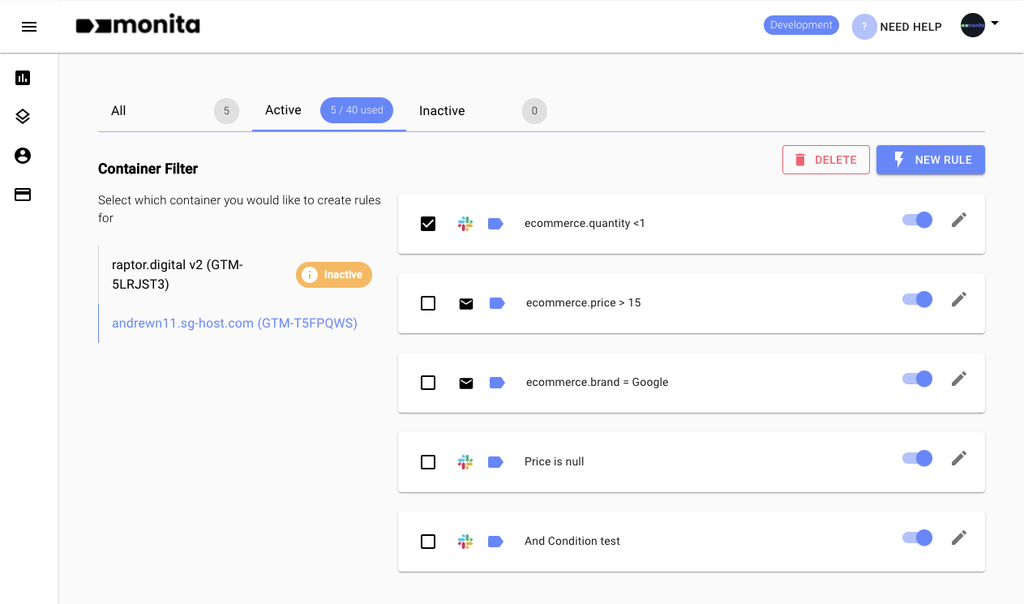
2. Select alerts you want to delete
   <img src="https://mintcdn.com/monita/JXGAxnpYvkMASBZc/images/alerting/alert-selection.png?fit=max&auto=format&n=JXGAxnpYvkMASBZc&q=85&s=e6996c0f85301440fc23917a2f0d14f4" alt="Select alerts from list" width="1024" height="604" data-path="images/alerting/alert-selection.png" />
3. Press the Delete icon
   <img src="https://mintcdn.com/monita/JXGAxnpYvkMASBZc/images/alerting/bulk-delete-icon.png?fit=max&auto=format&n=JXGAxnpYvkMASBZc&q=85&s=cd430d7228a95ca0702426c98bd59adc" alt="Click delete button" width="136" height="56" data-path="images/alerting/bulk-delete-icon.png" />
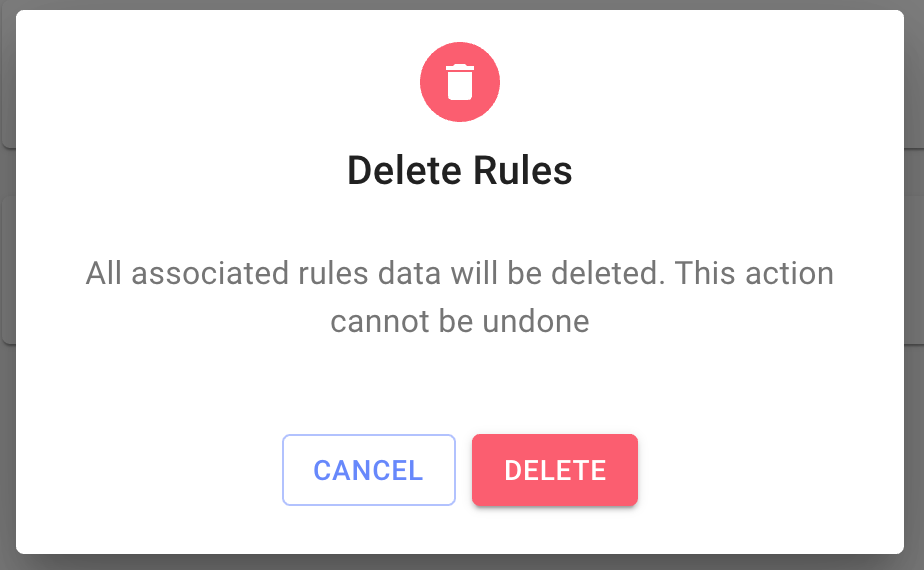
4. confirm the delete
   <img src="https://mintcdn.com/monita/JXGAxnpYvkMASBZc/images/alerting/deletion-confirmation-modal.png?fit=max&auto=format&n=JXGAxnpYvkMASBZc&q=85&s=1847b4daf379fc5e464132b0cb48bed1" alt="Confirm deletion" width="924" height="570" data-path="images/alerting/deletion-confirmation-modal.png" />
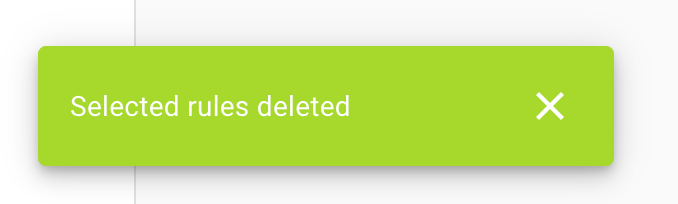
5. You will receive a notification toast indicating successful delete
   <img src="https://mintcdn.com/monita/JXGAxnpYvkMASBZc/images/alerting/deletion-confirmation-message.png?fit=max&auto=format&n=JXGAxnpYvkMASBZc&q=85&s=e88cca5298b248a5cda3c8cc4f391b77" alt="Deletion Confirmed" width="678" height="204" data-path="images/alerting/deletion-confirmation-message.png" />