> ## Documentation Index
> Fetch the complete documentation index at: https://docs.getmonita.io/llms.txt
> Use this file to discover all available pages before exploring further.
# ML Volume Anomaly Alert
> Checkout the instructions below for how to create an ML Volume Alert in Monita
ML Anomaly alerts requires a minimum of 1000 rows of data and/or 1 week of training data to begin working. If you have any questions [contact support](mailto:support@getmonita.io) or your account manager.
### Instructions
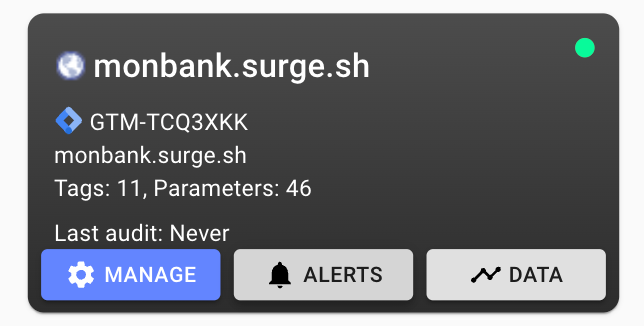
1. Hover on your property/container and press Alerts
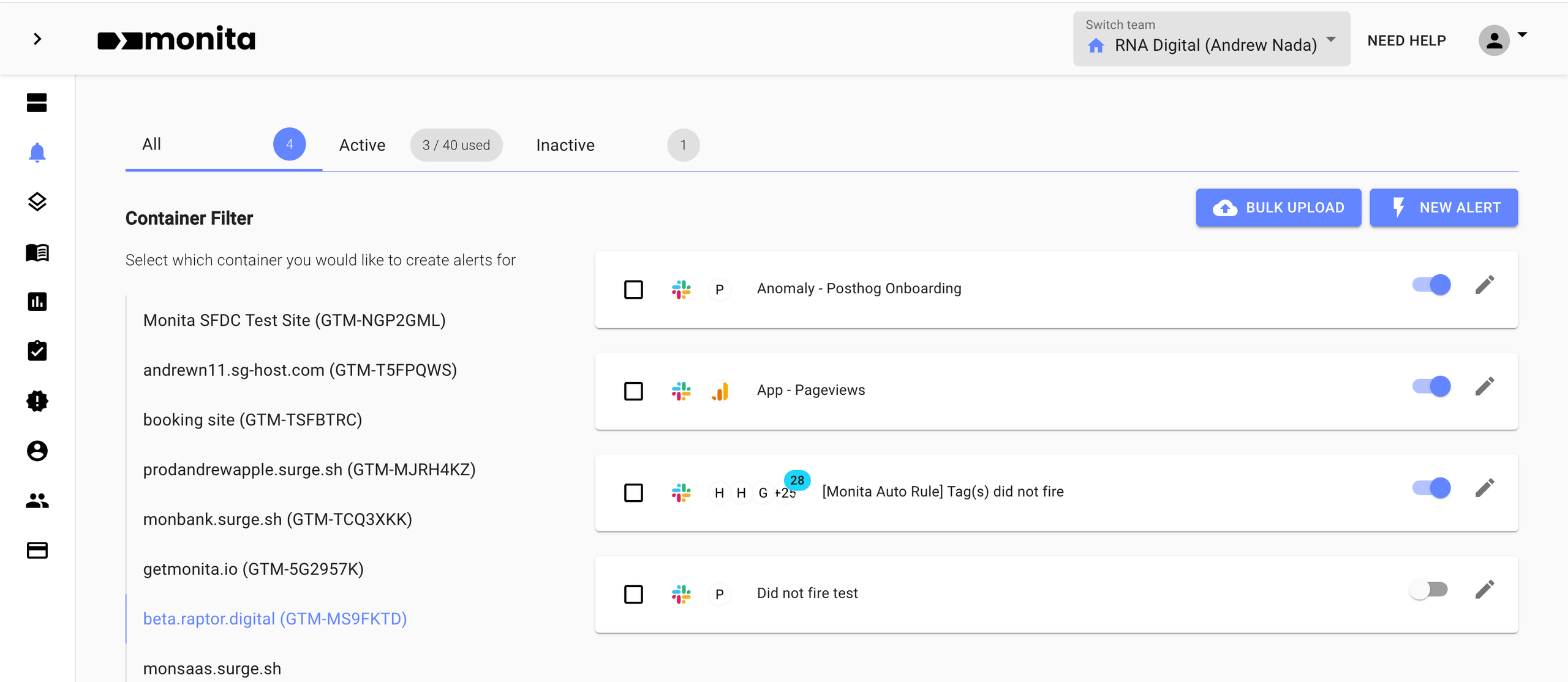
 2. Click 'New Alert'
 #### Select your Monitoring type below to see the alert setup for each.
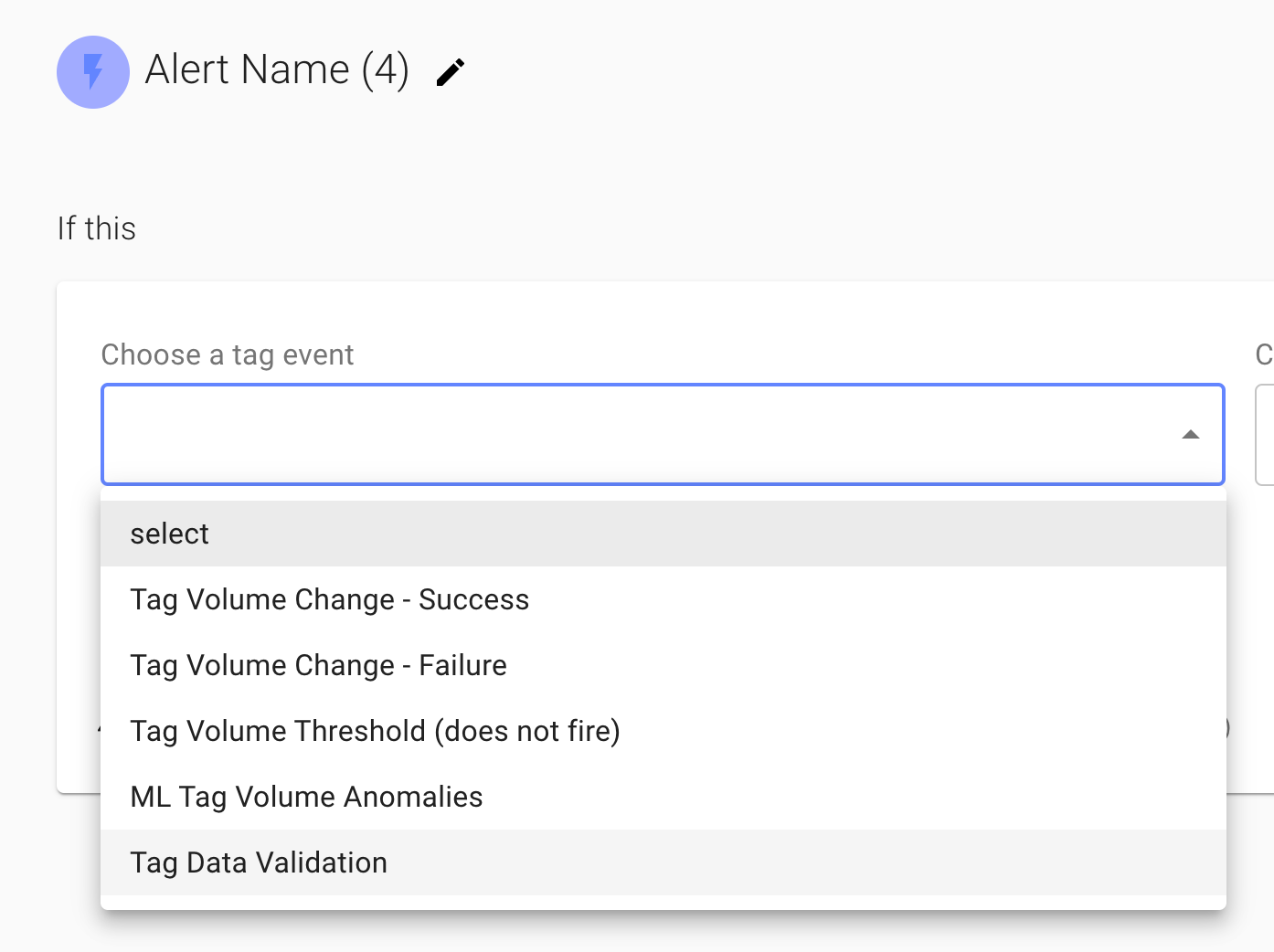
3. Select ML Tag Volume Anomalies
#### Select your Monitoring type below to see the alert setup for each.
3. Select ML Tag Volume Anomalies
 4. Select the Tag you would like to apply the alert to
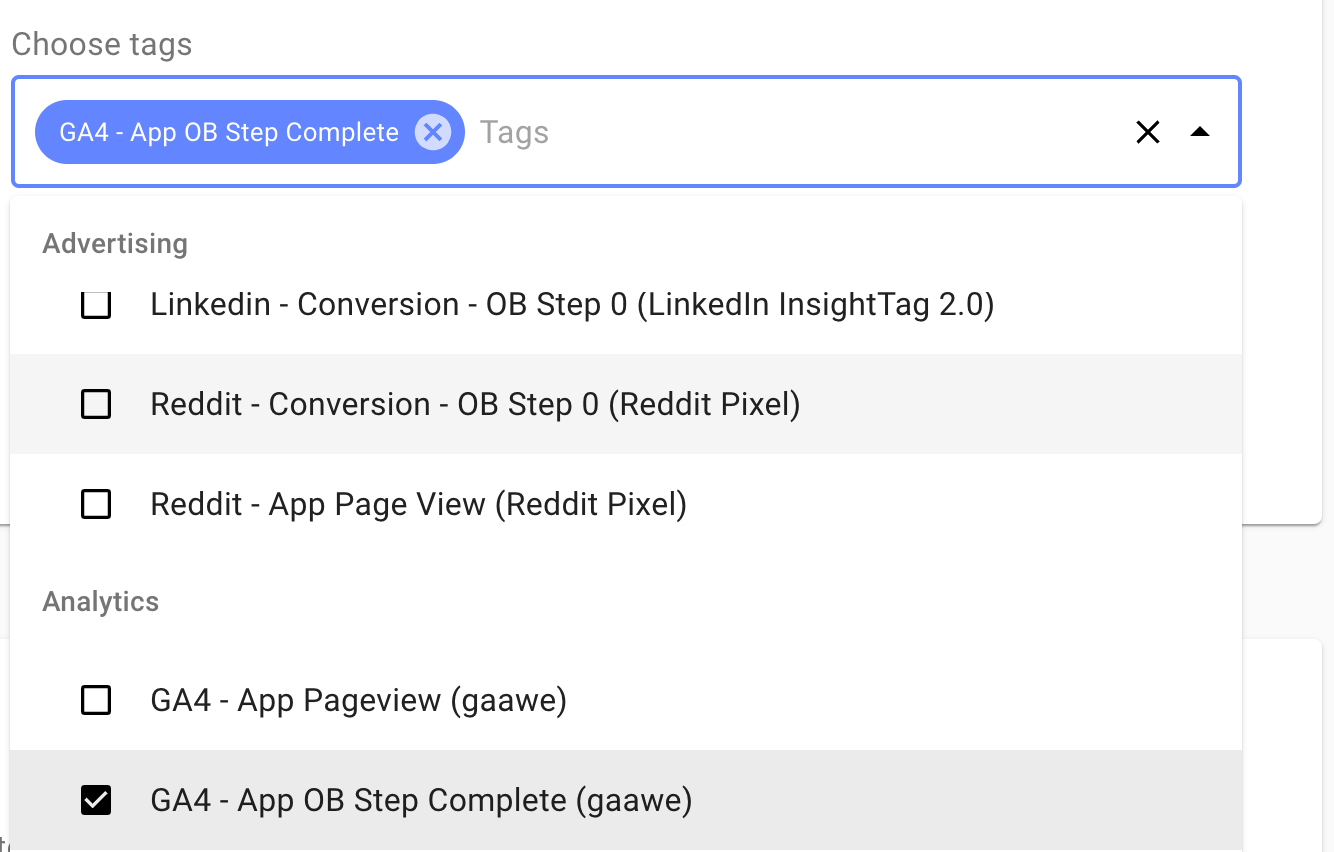 5. Optionally set the Severity of this particular Alert
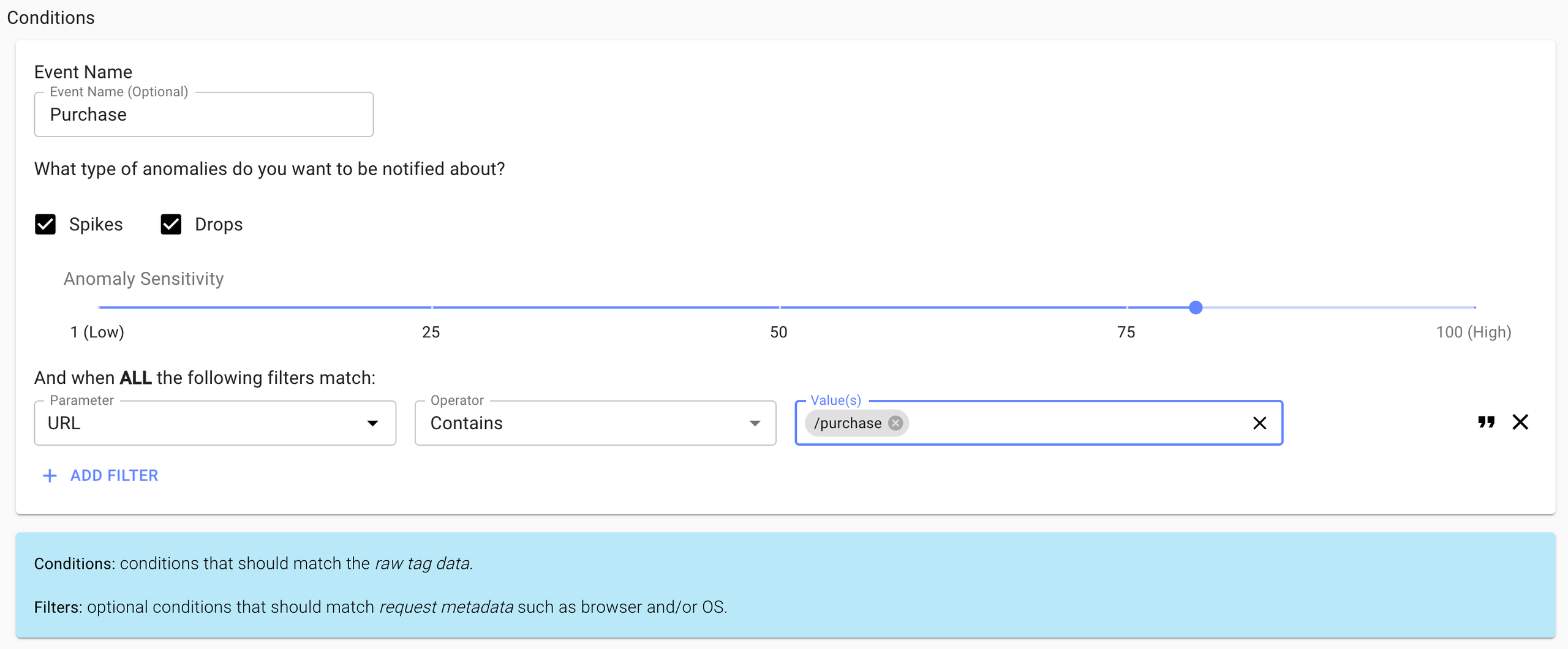
6. Enter any conditions
5. Optionally set the Severity of this particular Alert
6. Enter any conditions
 If you are receiving too many alerts (false positives) try reducing the sensitivity. Alternatively if you feel like it you are not alerted frequently enough try increasing the sensitivity
7. Finally select the channel you would like to get notified on (either Slack or Email).
If you are receiving too many alerts (false positives) try reducing the sensitivity. Alternatively if you feel like it you are not alerted frequently enough try increasing the sensitivity
7. Finally select the channel you would like to get notified on (either Slack or Email).
 If you have not yet added a Slack integration, your slack workspace won't appear. To add a Slack Integration go to:
[Integrations](https://getmonita.io/integrations) > Click New Integration > Select Slack
For detailed instructions on how to add a Slack Integration, see [this article](/integration/slack-integration).
8. Press Save
 3. Provide an alert name name, select the domain, select AI Anomaly Detection, select the Severity and select the Vendor
 4. Enter in any conditions you would like be met to trigger the alert
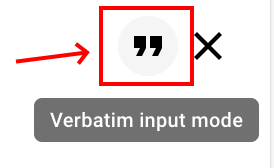
 If you would like to copy and paste multiple comma delimited values in the Value field you can do so and press Enter (which will split it up into multiple chips). Alternatively if you toggle the verbatim input mode on, this will process anything pasted as a single value.
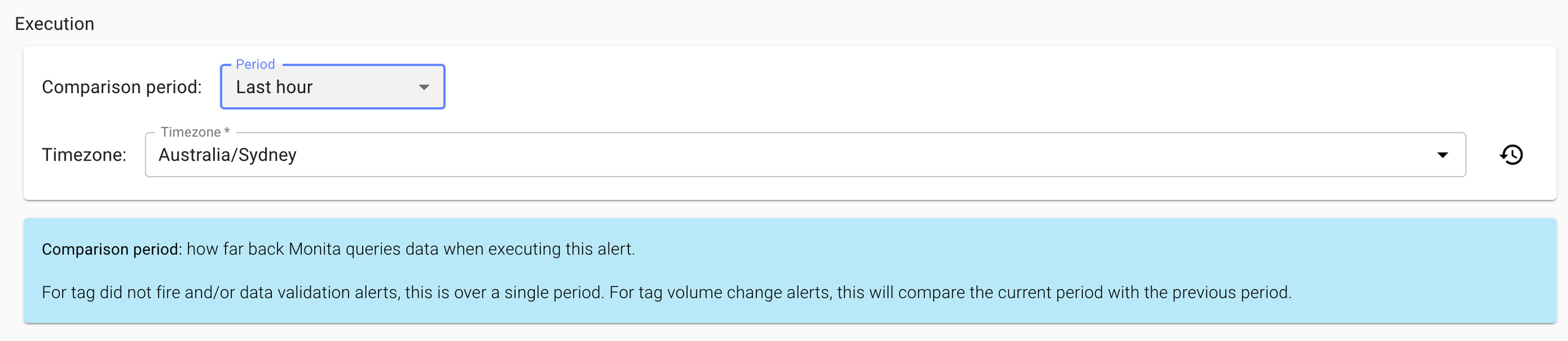
 5. Provide an execution period
 6. Provide the Alert destination (slack, email)
 If you have not yet added a Slack integration, your slack workspace won't appear. To add a Slack Integration go to:
[Integrations](https://getmonita.io/integrations) > Click New Integration > Select Slack
For detailed instructions on how to add a Slack Integration, see [this article](/integration/slack-integration).
7. Press Save
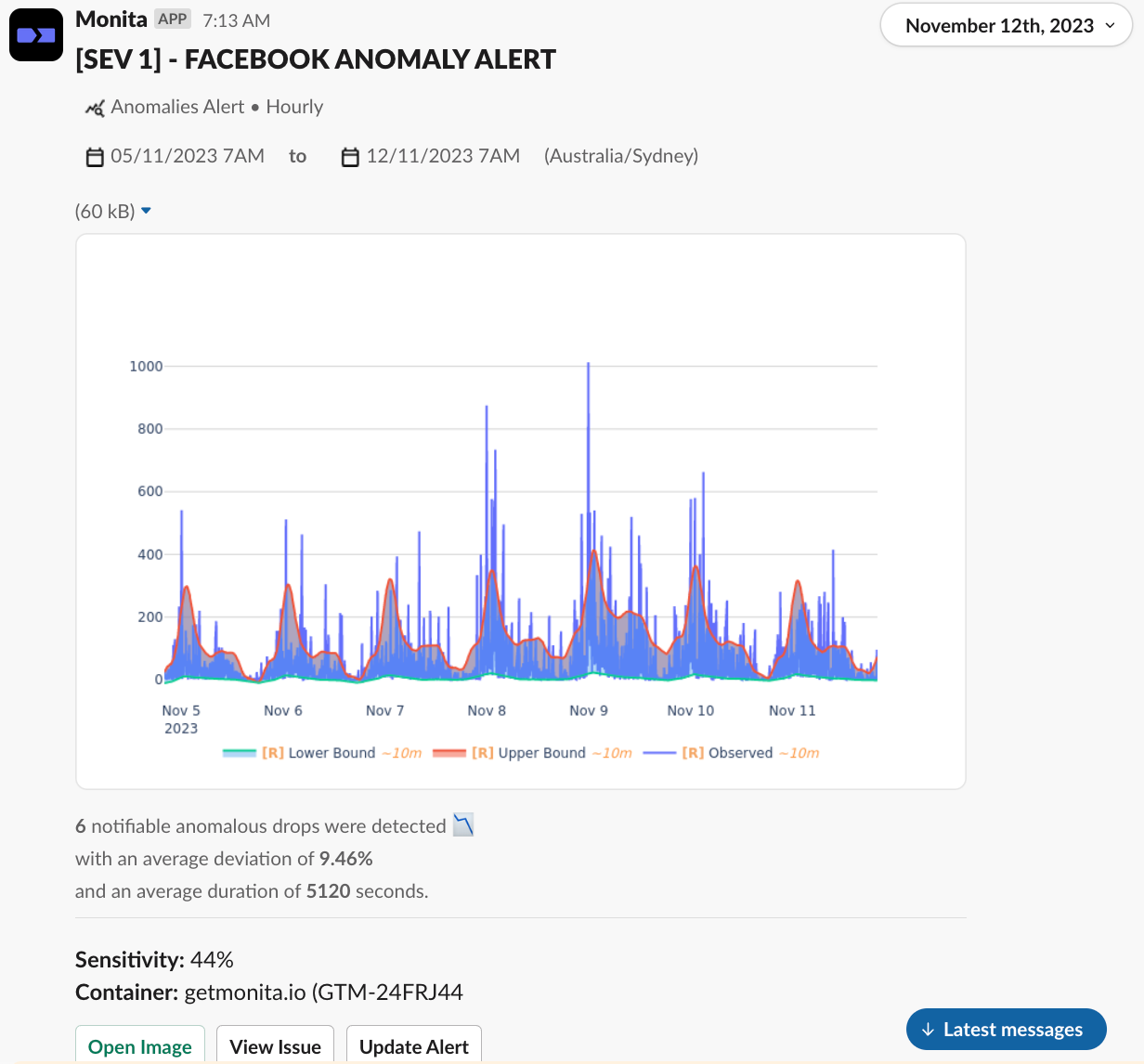
Anomaly alerts look like this in Slack