> ## Documentation Index
> Fetch the complete documentation index at: https://docs.getmonita.io/llms.txt
> Use this file to discover all available pages before exploring further.
# GTM Container Integration
> This article takes users through how to integrate with a Google Tag Manager container.
### Instructions
1. [Login](https://app.getmonita.io) to the app
2. Go to [Integrations](https://app.getmonita.io/integrations)
3. Click 'New Integration'
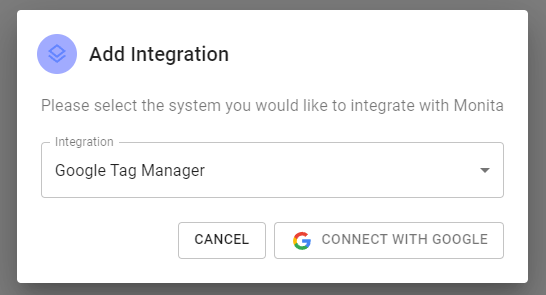
 4. Select Google Tag Manager and press 'Connect with Google'
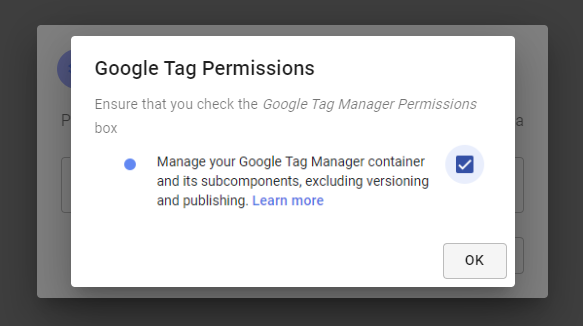
 5. Confirm GTM permissions required by checking the boxes (view may vary from image)
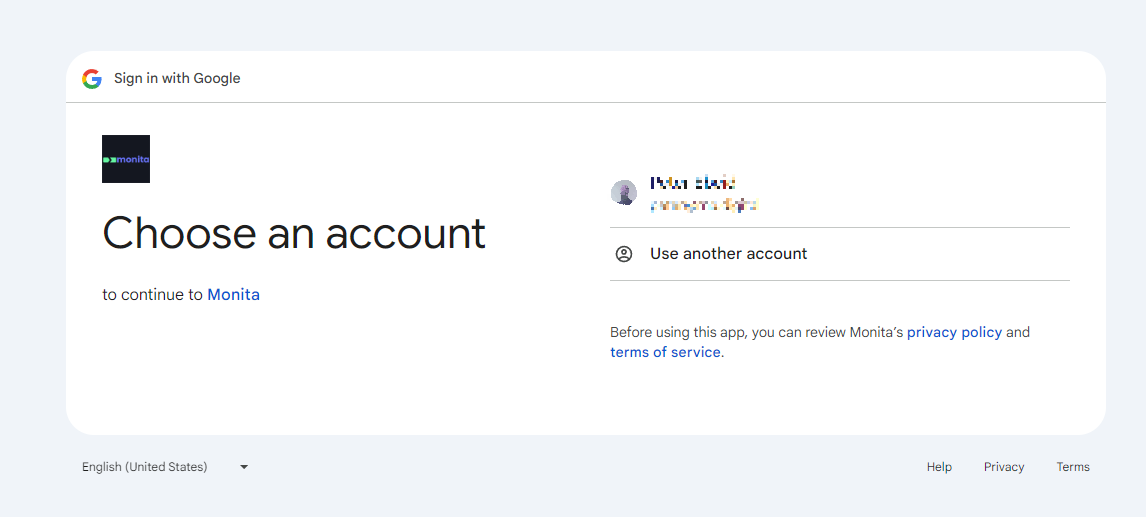
 6. Select Google Account. You may see a different screen if the user is not logged into any Google account, or the target Google account is not logged in.
Selected account must have full-write access to the container being monitored. Failure to have adequete perrmissions will result in monitoring errors. At a minimum, the account must be able to modify containers and container versions. Currently Monita does not Publish via the integration. The user is required to published manually. This is done to ensure user had total control over release cycle of GTM.
6. Select Google Account. You may see a different screen if the user is not logged into any Google account, or the target Google account is not logged in.
Selected account must have full-write access to the container being monitored. Failure to have adequete perrmissions will result in monitoring errors. At a minimum, the account must be able to modify containers and container versions. Currently Monita does not Publish via the integration. The user is required to published manually. This is done to ensure user had total control over release cycle of GTM.
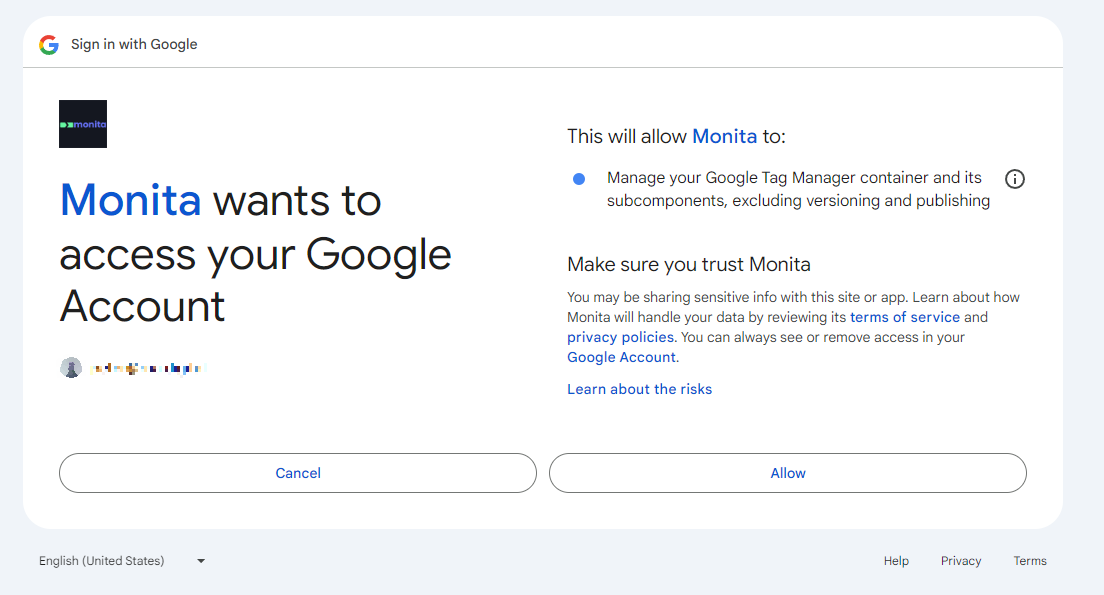
 7. Confirm permmissions being allowed to Monita
 8. If integration is successful, a tile will appear with a green status light.
 After connecting it may take up-to 5mins before your containers propagate into our system. Please allow time after before deploying tags.