> ## Documentation Index
> Fetch the complete documentation index at: https://docs.getmonita.io/llms.txt
> Use this file to discover all available pages before exploring further.
# Deployment Troubleshooting
> Use these steps if you are deploying Monita to your website and Monita still has not received data
Please check the following steps before contacting support.
### 1. Confirm that any Monita changes in the tag manager have been 'Submitted' or 'Published' to production
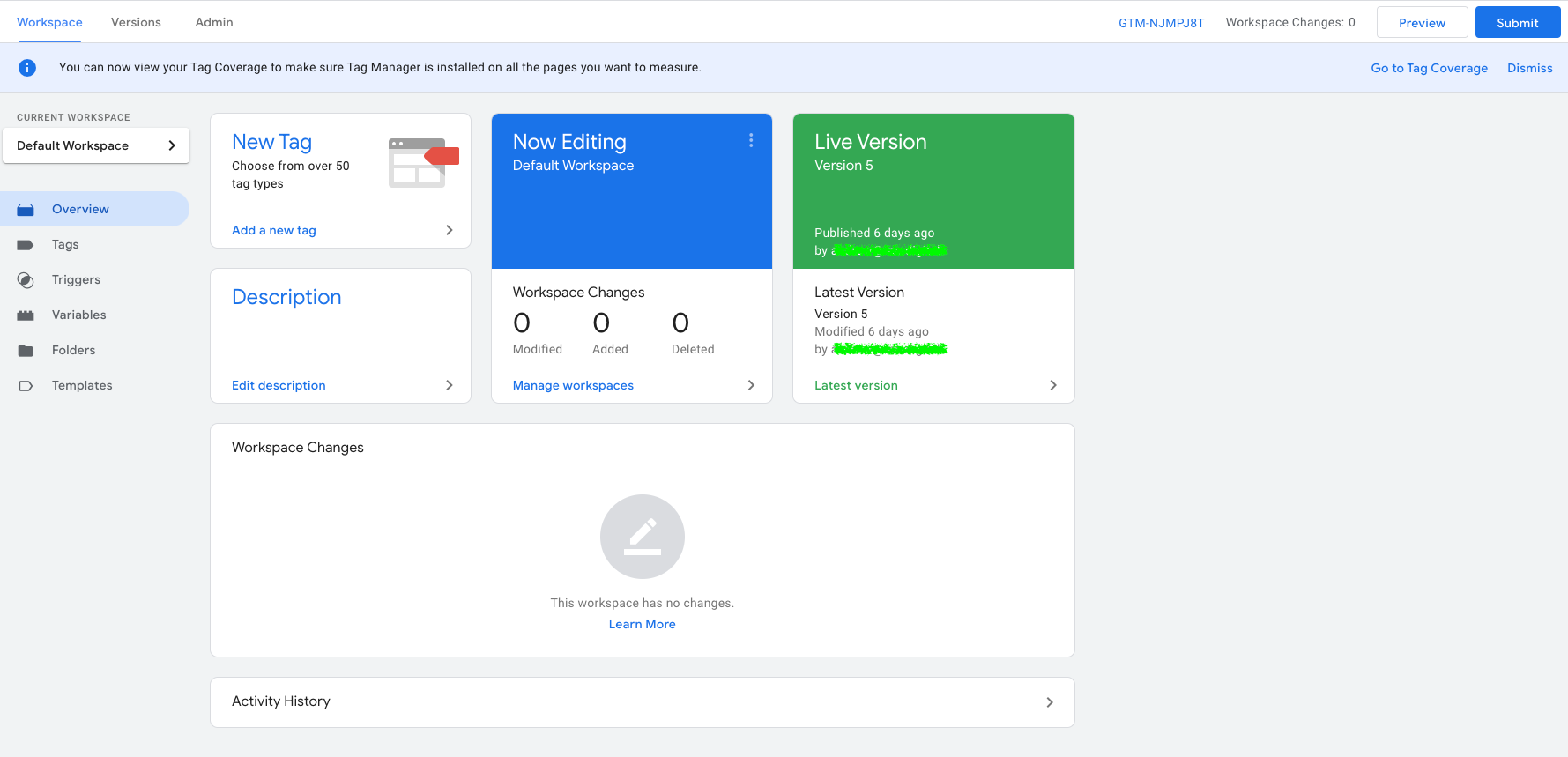
 Make sure to submit any changes Monita has made in the default workspace your tag manager container. Be careful not to deploy any of your own unfinished work.
After submitting Monita changes, the workspace changes should be blank and your container version should have increased.
Make sure to submit any changes Monita has made in the default workspace your tag manager container. Be careful not to deploy any of your own unfinished work.
After submitting Monita changes, the workspace changes should be blank and your container version should have increased.
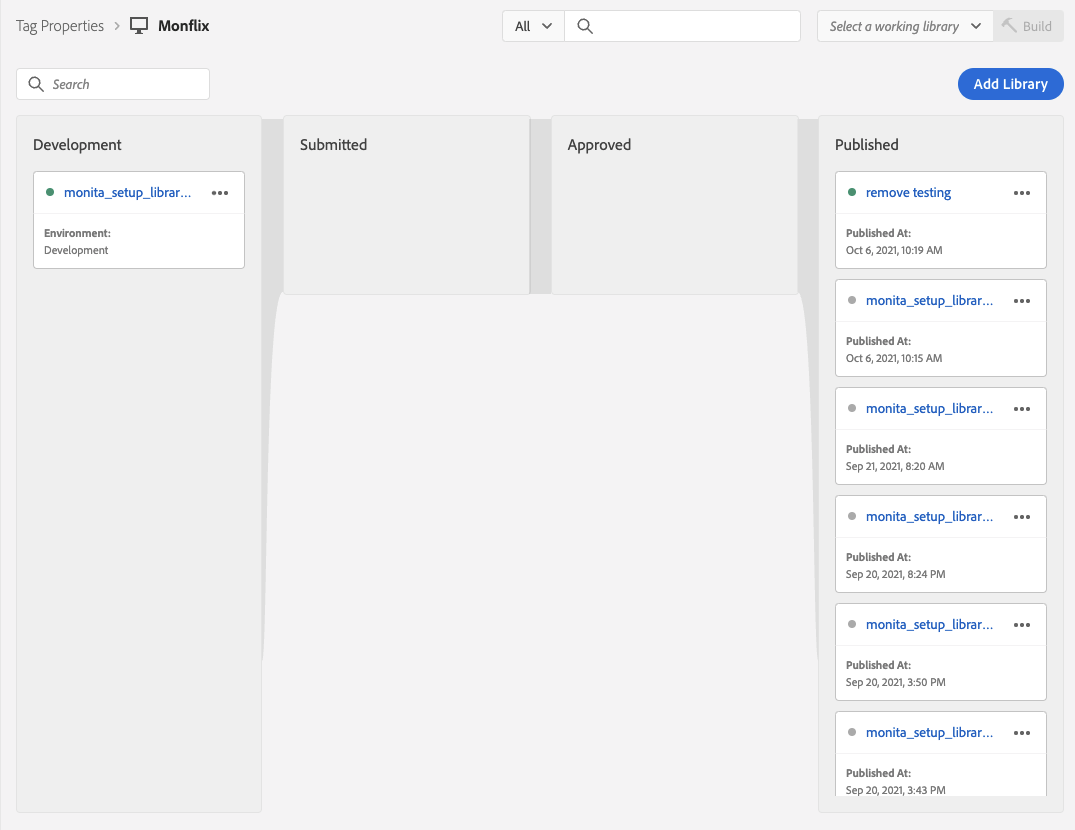
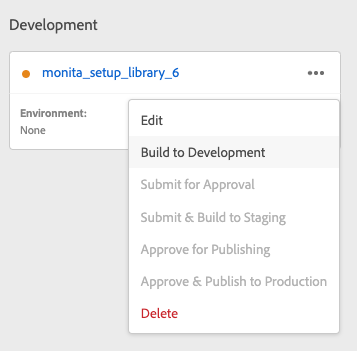
 In order for Monita to receive requests you must Publish the monita\_setup\_library to the appropriate environment (dev/staging/prod).
Please ensure the library is built/published to the environment you wish to run Monita on (dev/stage/prod)
In order for Monita to receive requests you must Publish the monita\_setup\_library to the appropriate environment (dev/staging/prod).
Please ensure the library is built/published to the environment you wish to run Monita on (dev/stage/prod)
 ### 2. Please fire off any tags which you have monitored
Monita will not receive data unless the tags which you have monitored have fired. To make your life easier we recommend you monitor an all pages tag.
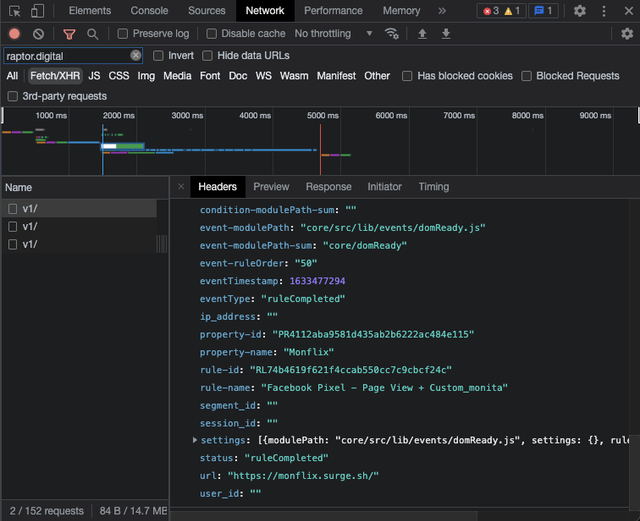
To confirm that data is being sent to Monita on the client side:
1. Open the dev console (by pressing F12)
2. Select the network tab
3. search for raptor.digital
4. Open the payload and Confirm requests being sent to monita
### 2. Please fire off any tags which you have monitored
Monita will not receive data unless the tags which you have monitored have fired. To make your life easier we recommend you monitor an all pages tag.
To confirm that data is being sent to Monita on the client side:
1. Open the dev console (by pressing F12)
2. Select the network tab
3. search for raptor.digital
4. Open the payload and Confirm requests being sent to monita
 ### 3. If all of these don't work please reach out to support by [Raising a ticket here](https://rnadigital.atlassian.net/servicedesk/customer/portal/2/group/3/create/9)