You many want to want to send a custom event to Monita based on a user action or other condition that is not associated with a server call made by the vendor.

Instructions

  1. Configure Global Monitoring
  2. Choose a vendor you want to send events for. You may create your own custom vendor
  3. Enable Monita collect Enable Monita Collect
  4. Open Vendor code detail panel by clicking on code
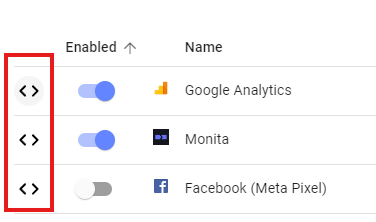
    Open vendor code detail pane
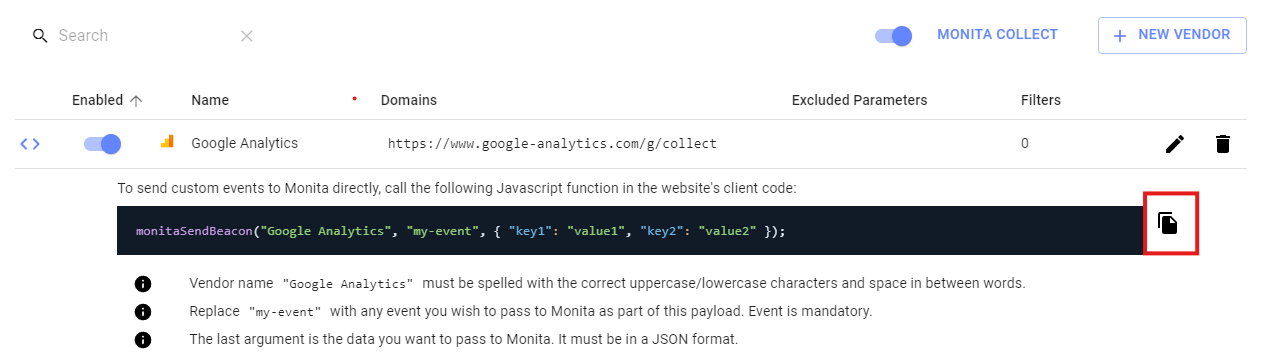
  5. Copy code example copy code
  6. Paste and modify the code in your website Javascript code
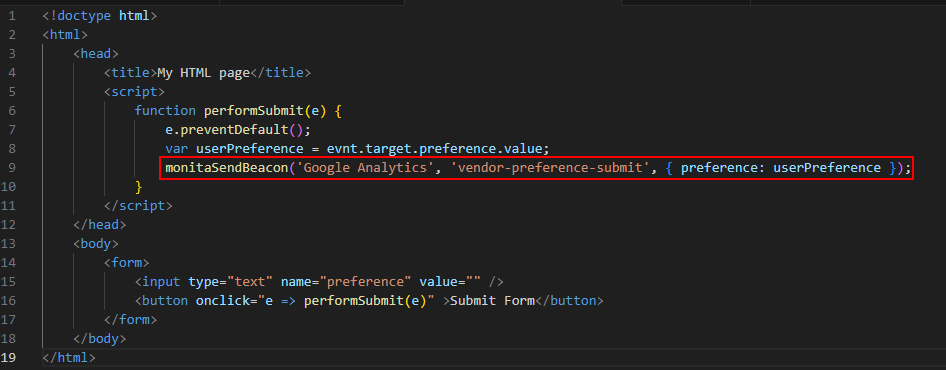
    If you want to keep track of certain variables, call monita collect monitaSendBeacon(...) at the same spot inthe code the variables are set before being processed.
    Enable Monita Collect
  7. Test execution
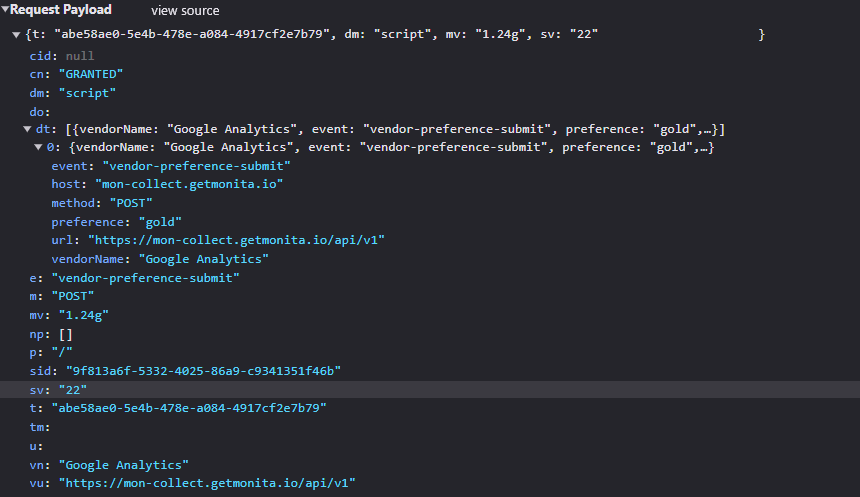
If you have successfully send data to Monita from the client, you should see a network call on the Network tab in your browser (filter for v1/) and it should be visible in the platform visualisation dashboard. Check Monita Collect traffic

Sending custom data to Monita

If you want to send any arbitrary event and data to Monita, you can use ‘Monita’ as the Vendor (or even add your own custom Vendor in the UI.) See a sample code snippet below:
The monitaSendBeacon function will work so long as the Monita Global JS SDK has been initialised on the page. If not, it should be loaded. To check if it has been loaded you can try and access __monita_settings, if it is available then Monita has been loaded. If not you can manually add our initialisation script with your token as per this guide.
<script>
  // This simple example assumes the Monita SDK is already loaded on the page.
  monitaSendBeacon("Monita", "customEvent", {
    // Add any additional data such as data layer keys you want to send below:
    // url: window.location.href,
    // path: window.location.pathname,
    // userId: 'user123',
    // pageCategory: 'landing'
  });
</script>