
Instructions
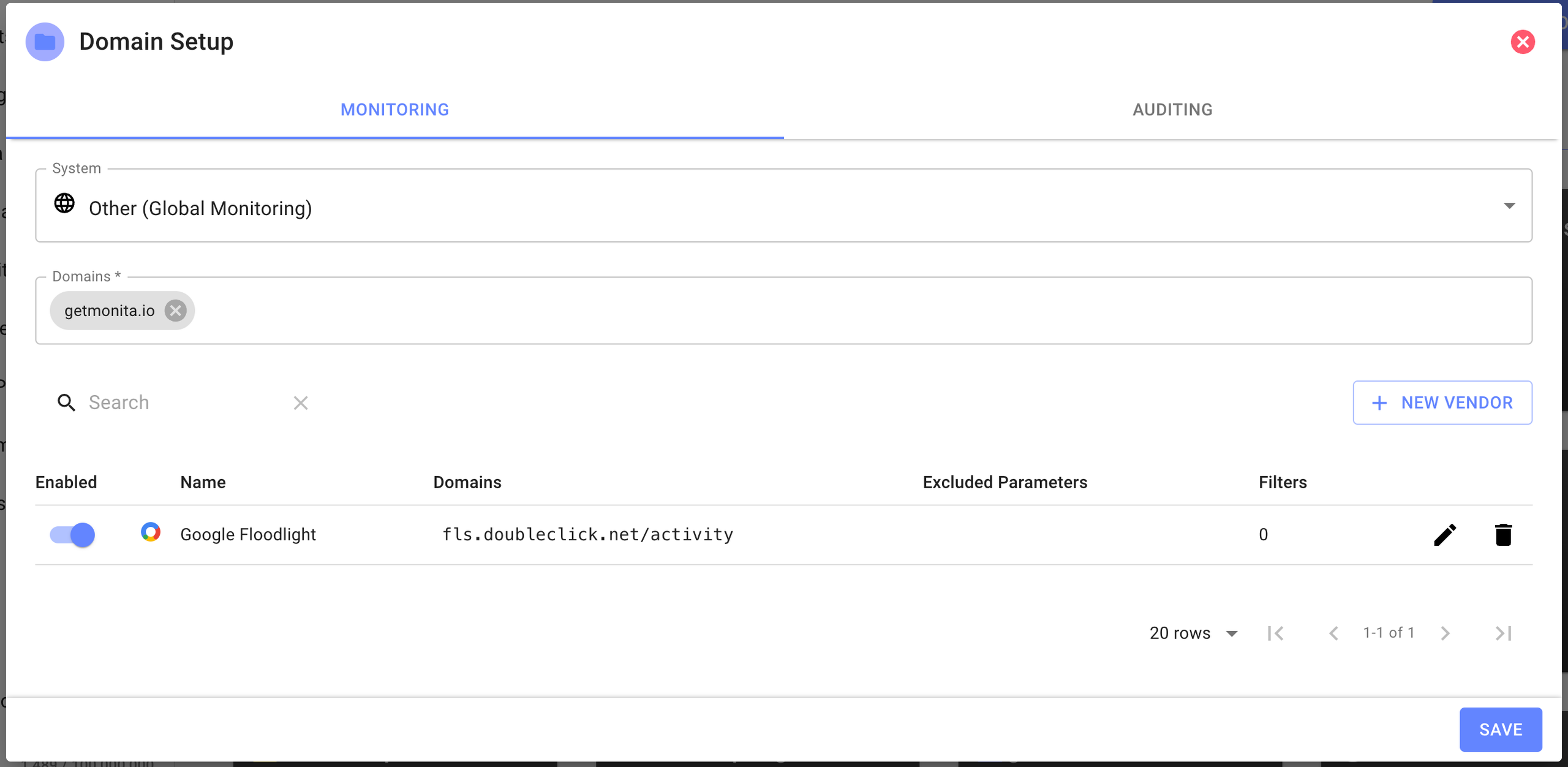
- Click ‘New Domain’ and your domain and select the Monitoring Tab
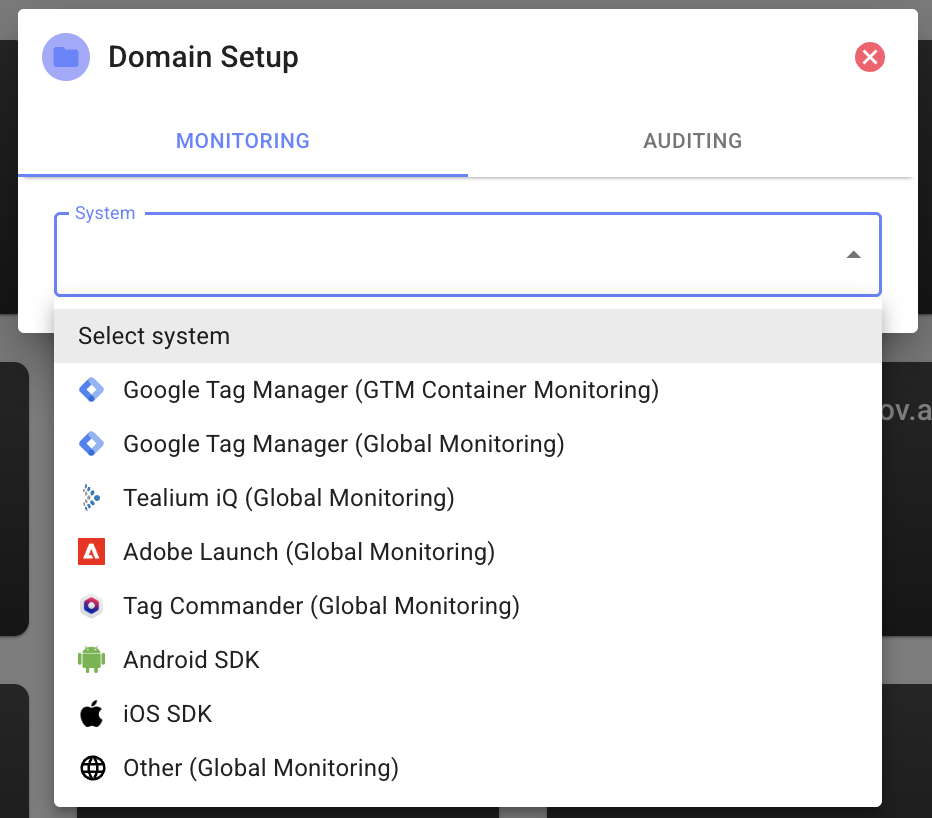
- Select iOS SDK or Global Monitoring (Use Global if you would like to use the same Domain for both web and mobile)
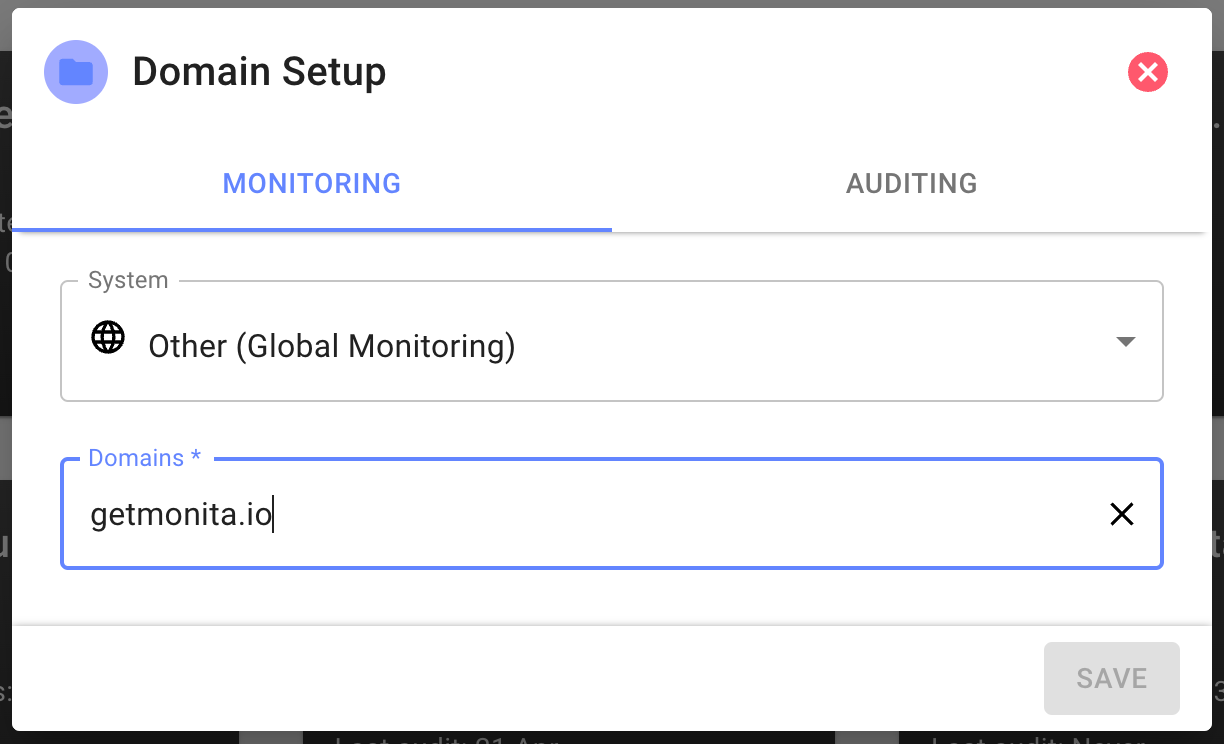
- Next provide the Domain you wish to ingest events from and press enter (you can add subdomains here)
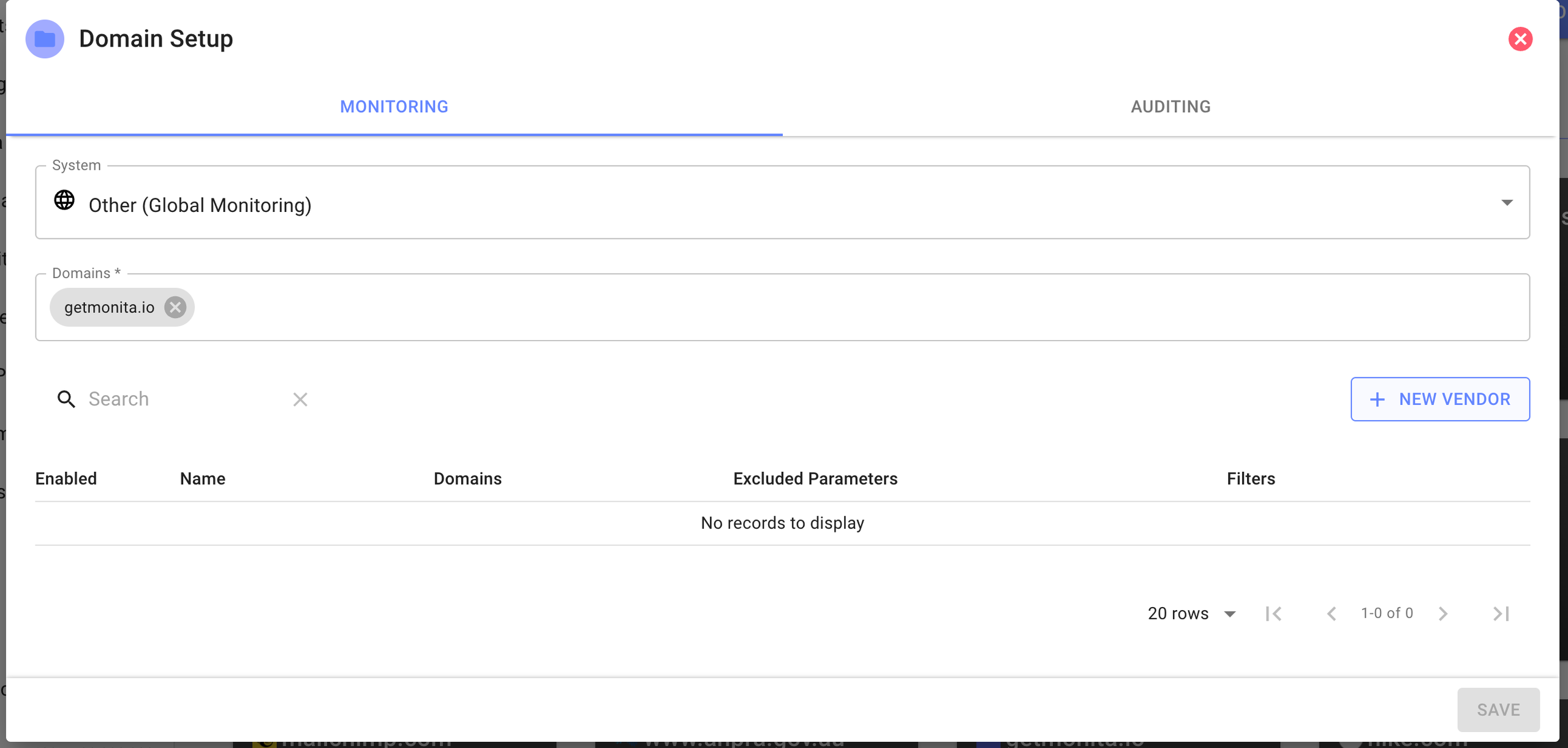
- Start adding Vendors by Clicking new Vendor
- Search for an existing Vendor or create a Custom Vendor
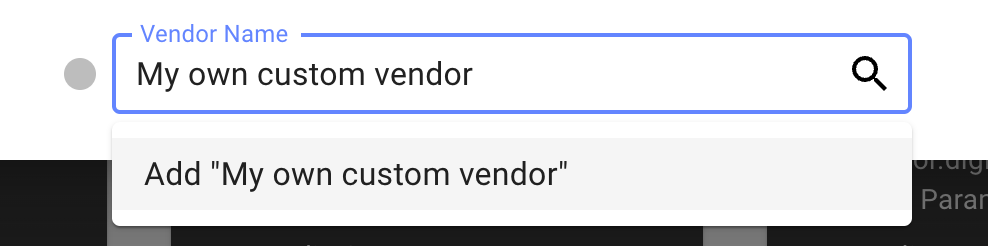
Create a custom vendor
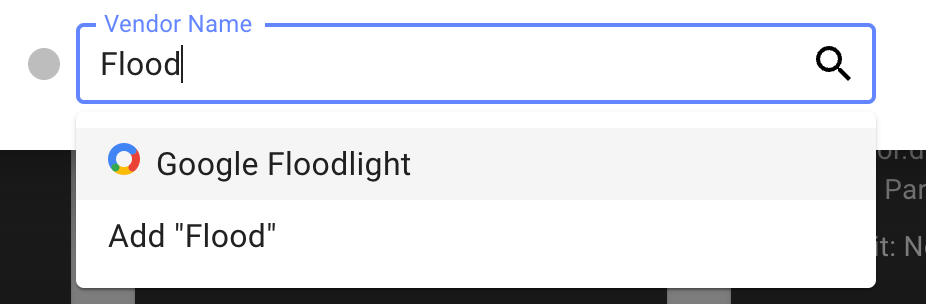
Search for existing providers
- Fill in the Monitoring Form for the specific Vendor you have Chosen
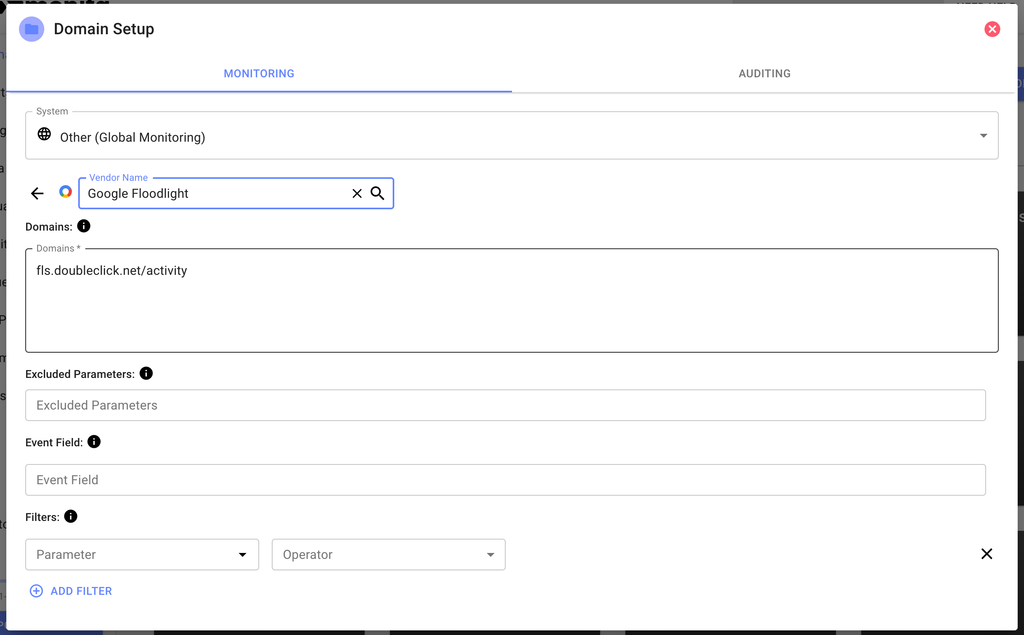
Domains
Domains
This is the domain which client side pixel/tag requests are sent to.
Typically known as the request URL e.g. for Facebook, “facebook.com/tr”.
Execluded Parameters
Execluded Parameters
Use this field to specify which keys you would like to exclude from monitoring. e.g. Facebook sends an “sw” parameter with screen width. If you don’t want/need to monitor that key, enter it here.
Event Mapping Field
Event Mapping Field
Used to specify which key in the vendors payload corresponds to the event name.
You can specify either a single field by name, or multiple fields inside curly braces e.g. 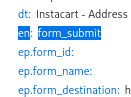
{{fieldA}}-{{fieldB}}. Here is an example request with the event in the “ev” parameter:regex::(?<=https:\/\/)[\w|-]*::urlThis format represents 3 sections, separated by double-colons (::). The 3 sections are:regexwhich inpforms the expression parser that the user is passing a regex expression(?<=https:\/\/)[\w|-]*is the regular expression itself (javascript regex supported. Test your regex in any regex editor such are Regexr)urlis the field from which the content is extracted. You may use a dot (.) separated field path. (url,host,methodandvendorNameare automatically added to the payload)
eve-{{regex::(?<=https:\/\/)[\w|-]*::url}} (multiple digits) on value of field “myfield”. In a payload { url: "https://subdomain.myapp.com" }, the event field will be eve-subdomain.Filters
Filters
Use this to focus your monitoring to specific vendor requests e.g. only where “ev” = “orderSuccess”. This can also help reduce API call consumption.
- After completing your Vendor Form press the Apply and then the Save button. To Manage simply enter this form again, edit and you will notice the Deployment Version at the bottom increment by 1.
- See the below iOS Swift installation guide to install the iOS SDK on your Swift App.
Installation
Follow these steps to integrate Monita SDK into your iOS project:Step 1: Add the Package Dependency
- Open Xcode and navigate to File > Swift Packages > Add Package Dependency.
- In the search box, enter the URL:
- Click Next.
- Select the branch option and enter
masteras the branch name. - Click Finish. The SDK will be added under Swift Package Dependencies.
Step 2: Configure the SDK Token
-
Open your project’s
Info.plistfile in Xcode. -
Add a new key called
MonitaSDKTokenwith your SDK token as the value:
Usage
After installing the SDK, initialize it in your application delegate. For example, update yourAppDelegate.swift as follows: