
Instructions
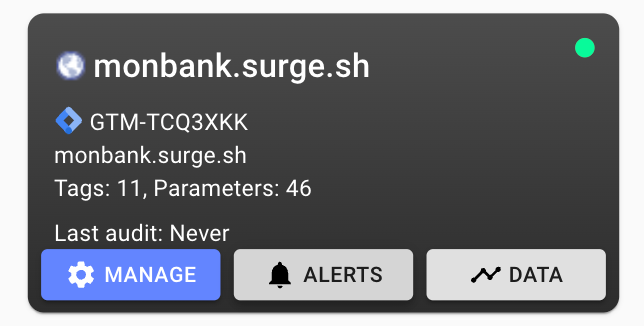
- Hover on your property/container and press Alerts
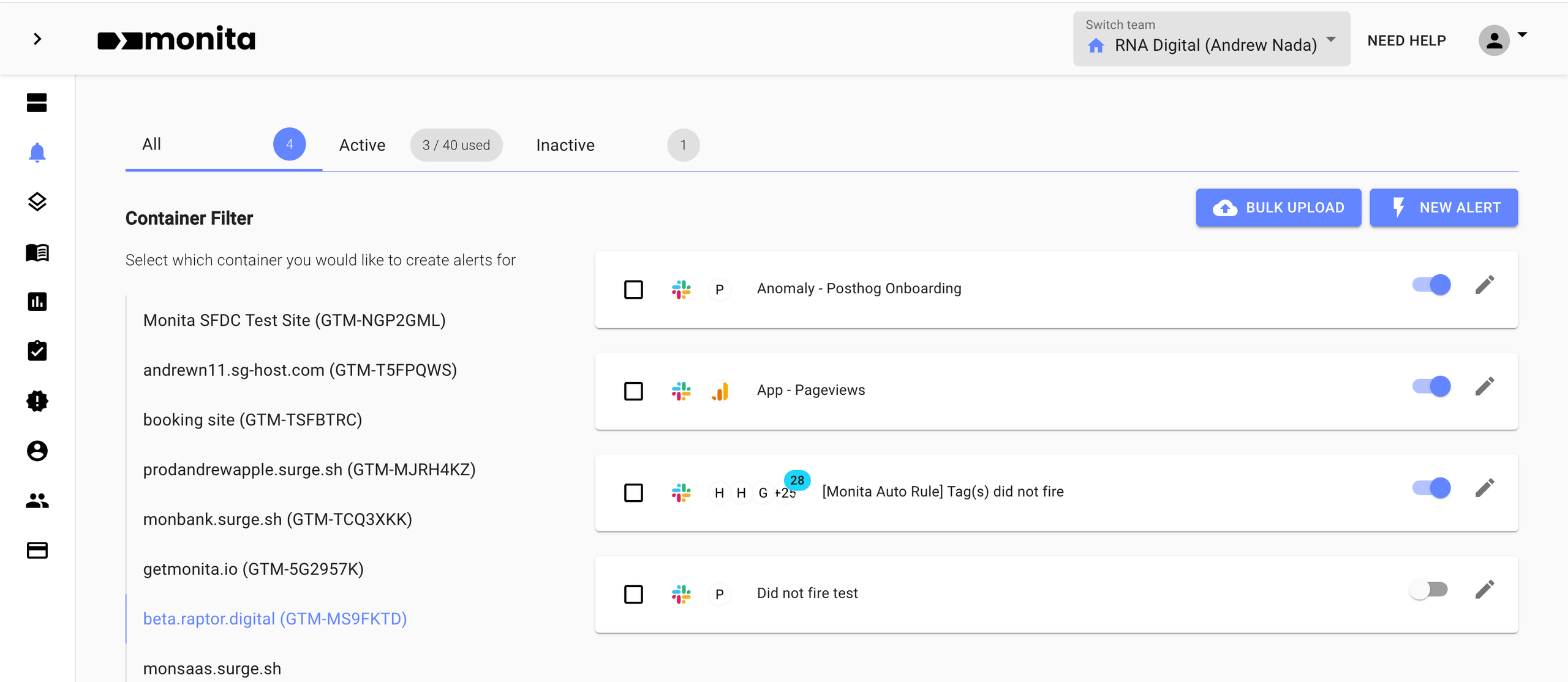
- Click ‘New Alert’
Select your Monitoring type below to see the alert setup for each.
For Google Tag Manager Containers
For Google Tag Manager Containers
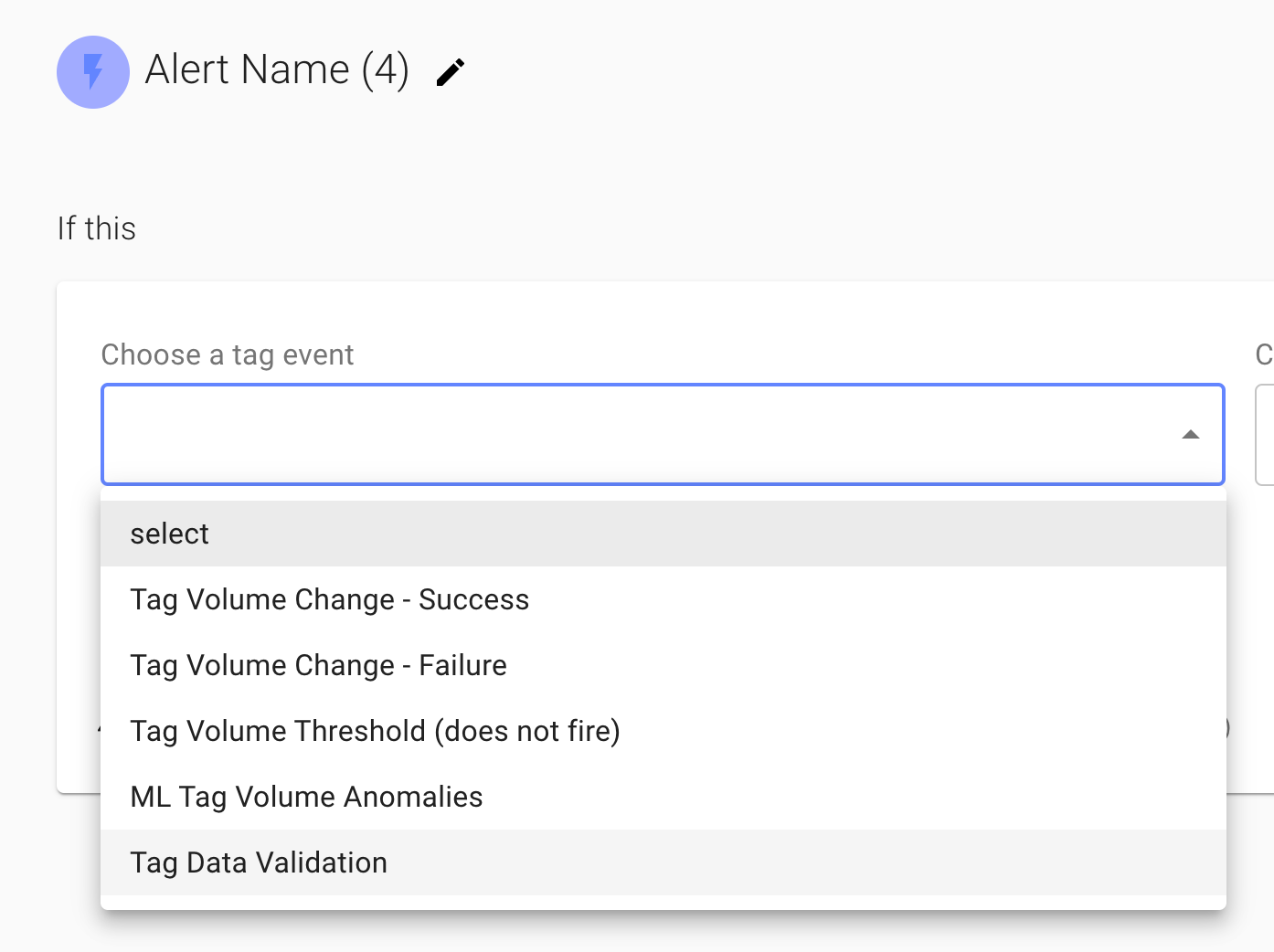
- Select Select Tag Data Validation
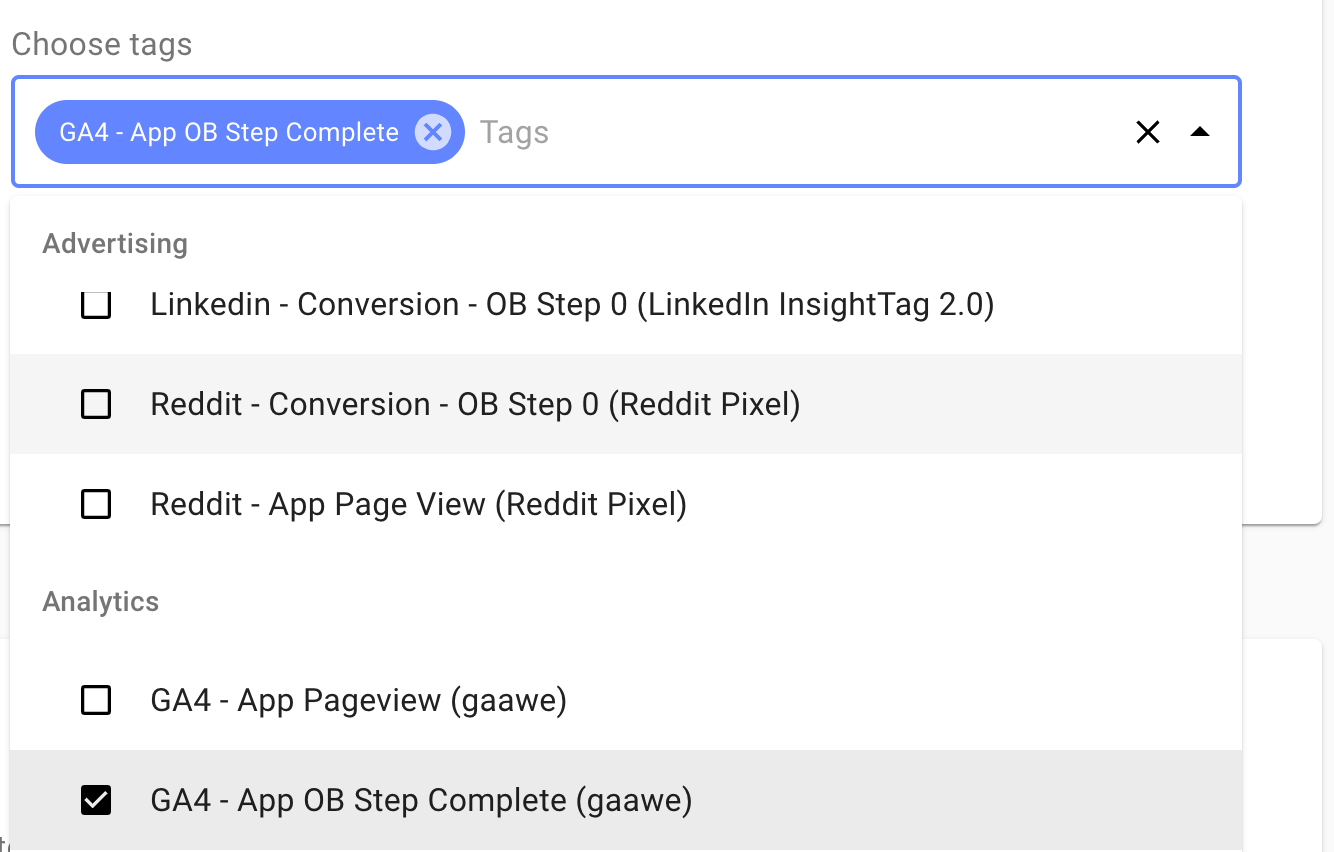
- Select the Tag you would like to apply the alert to
- Optionally set the Severity of this particular Alert
- Enter a condition which you would like your alert to trigger on
- ANY will apply an OR to any rows in the field key section
- ALL will apply an AND to any rows in the field/key section
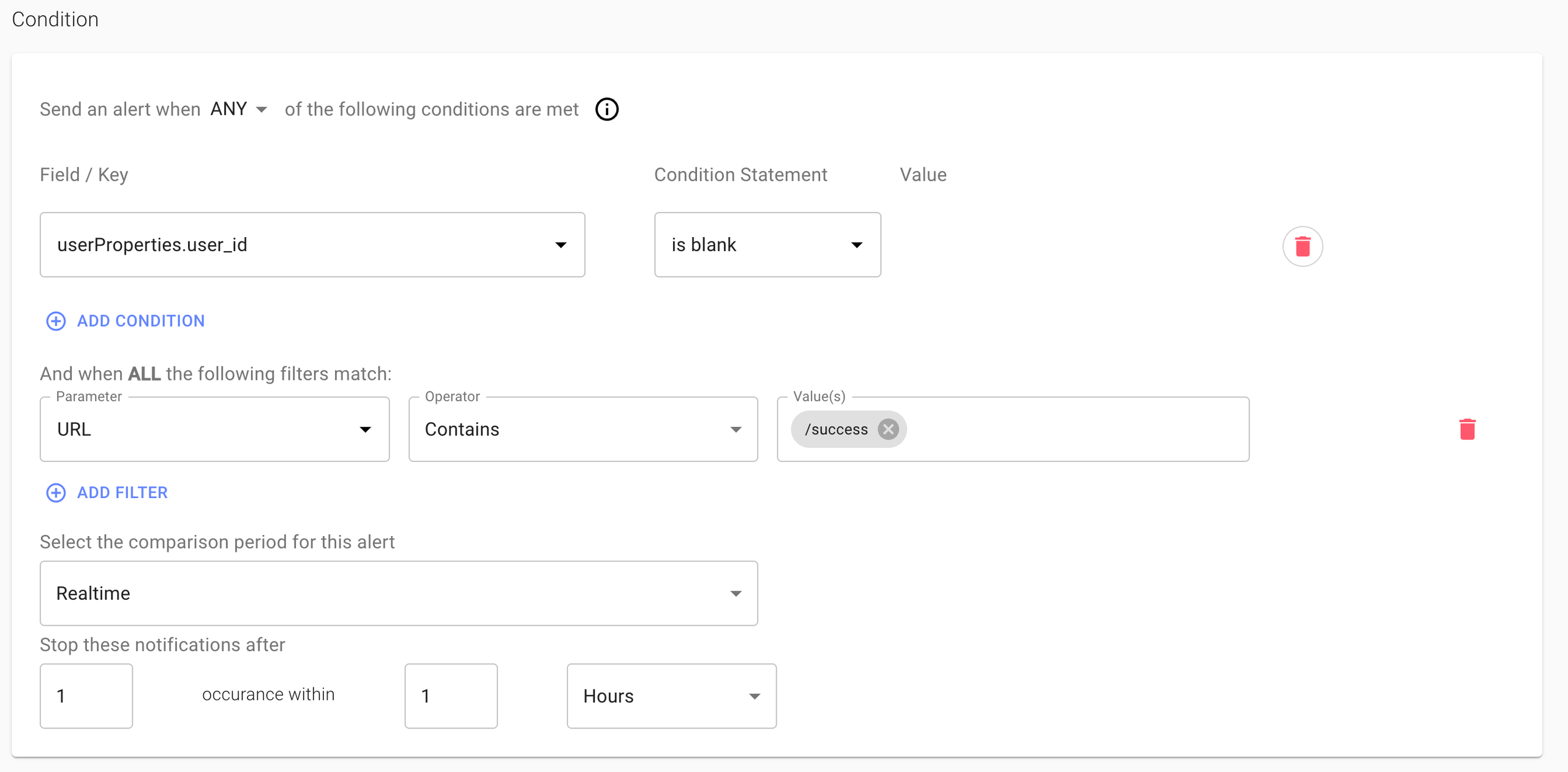
- Select the Comparison period, this can be evaluated on a Realtime, Hourly, Daily, 3 day or Weekly basis
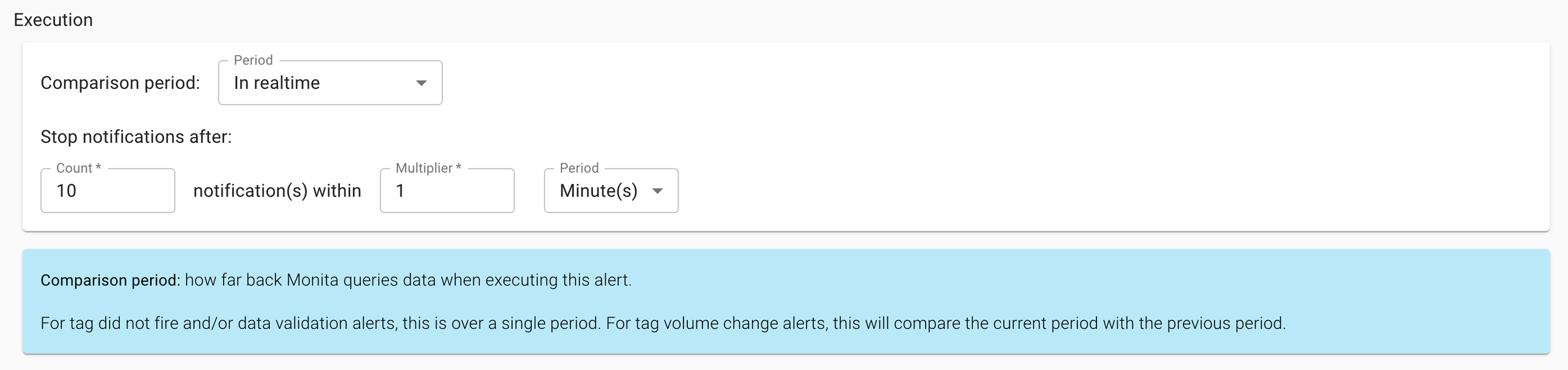
- If Realtime, you can provide a Stop. The example above ensures regardless of how many times it happens, you receive no more than 1 alert every hour
- If daily, enter what time you would like to be notified. Note this is also the time window of evaluation eg if daily, we will count the number of times the conditions were met from 9am - 9am
- Finally select the channel you would like to get notified on (either Slack or Email).
 If you have not yet added a Slack integration, your slack workspace won’t appear. To add a Slack Integration go to:
Integrations > Click New Integration > Select Slack
For detailed instructions on how to add a Slack Integration, see this article. - Press Save
For Global Monitoring Container (Tealim/Adobe Launch/GTM/Tag Commander/JS)
For Global Monitoring Container (Tealim/Adobe Launch/GTM/Tag Commander/JS)
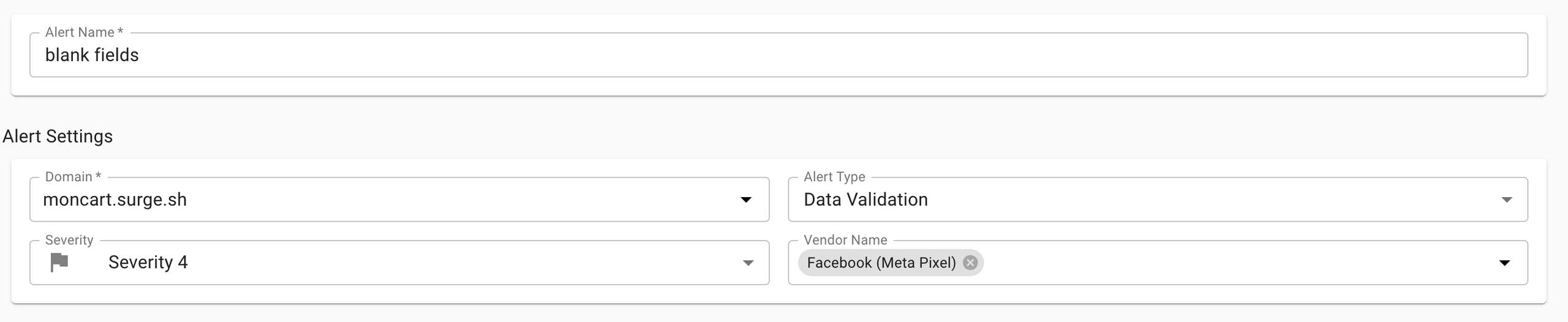
- Enter the name, select the domain, select Data Validation, select the Severity and provide the Vendor
- Enter in any conditions you would like be met to trigger the alert
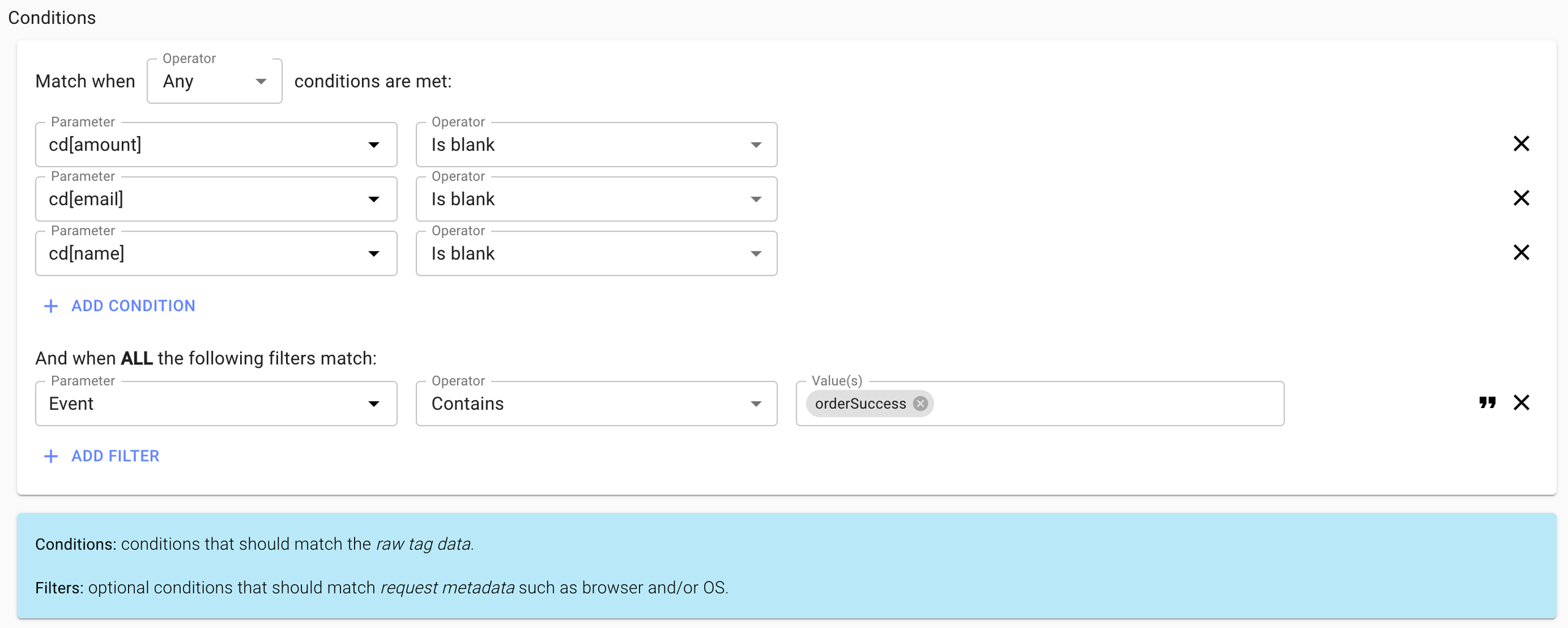 If you would like to copy and paste multiple comma delimited values in the Value field you can do so and press Enter (which will split it up into multiple chips). Alternatively if you toggle the verbatim input mode on, this will process anything pasted as a single value.
- Provide an execution period
- Provide the Alert destination (slack, email)
 If you have not yet added a Slack integration, your slack workspace won’t appear. To add a Slack Integration go to:
Integrations > Click New Integration > Select Slack
For detailed instructions on how to add a Slack Integration, see this article. - Press Save